Cyber Security Hackathon 2021 - Network Category Writeup - pcap files

Table of Contents
This writeup includes regionals (Karachi only) and finals challenges.
Note: Not every challenge contains the challenge description, and data to submit is not always in the flag format.
Regionals (Karachi)
thetransfer
You can download the challenge file from here: thetransfer.pcap.
Let’s check what kind of protocols we are interacting with here, go to Statistics -> Protocol Hierarchy:
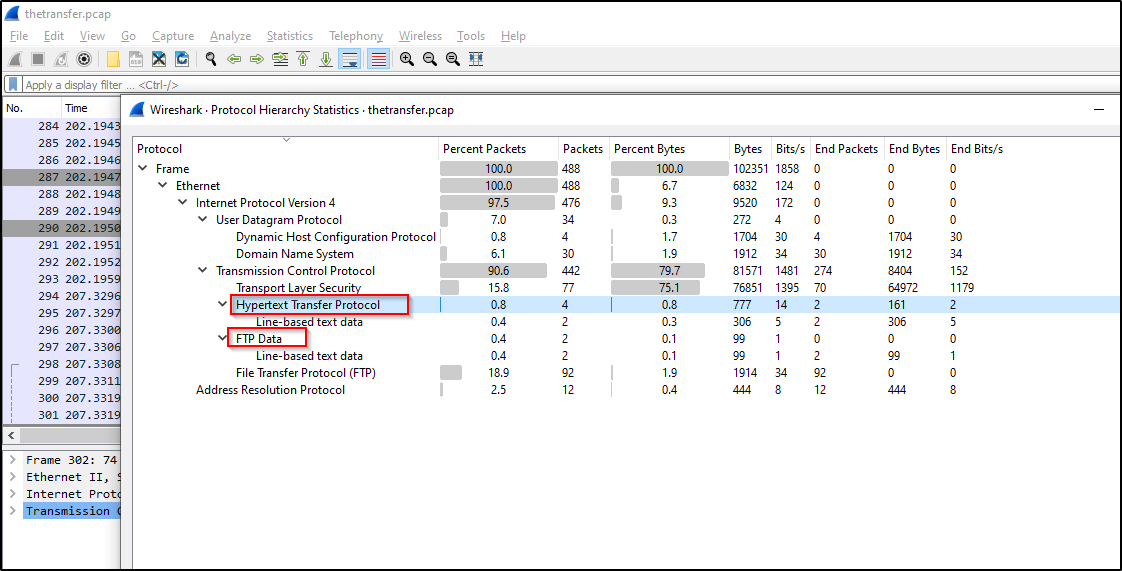
We have HTTP and FTP protcols that looks interesting, let’s inspect packets for both protocols.
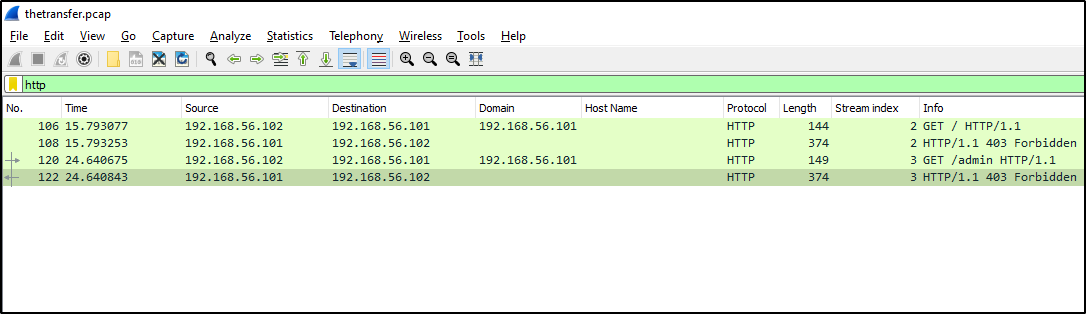
HTTP only got 403 responses from the server, and if we follow the HTTP stream, we get nothing interesting, but FTP got some login and data retrieval requests, let’s dig those:
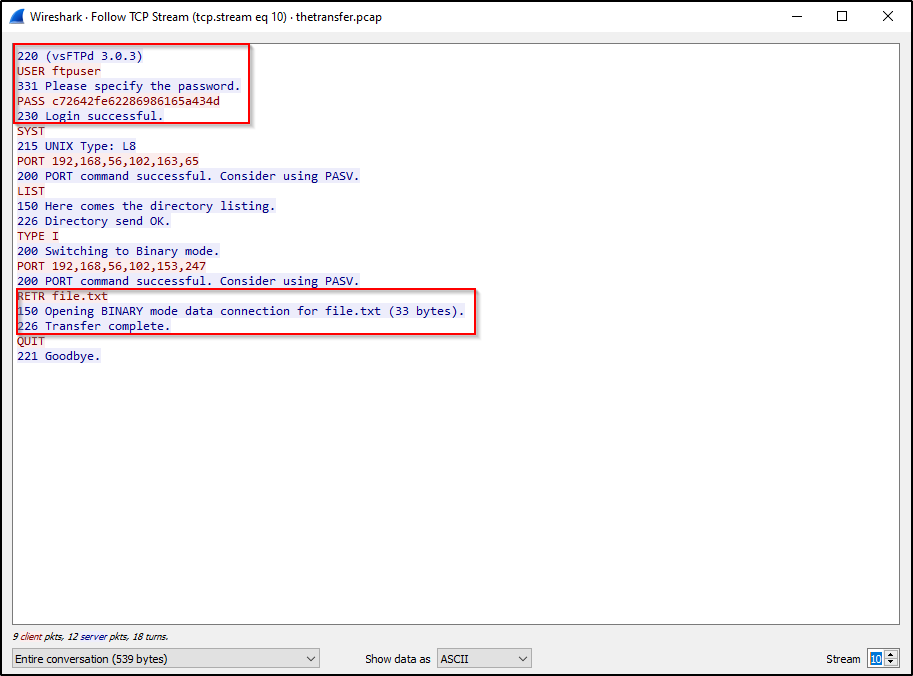
Cool, we found login credentials and we can see that the user also downloaded a file, and if we move to stream number 12, we can see the content of that file:
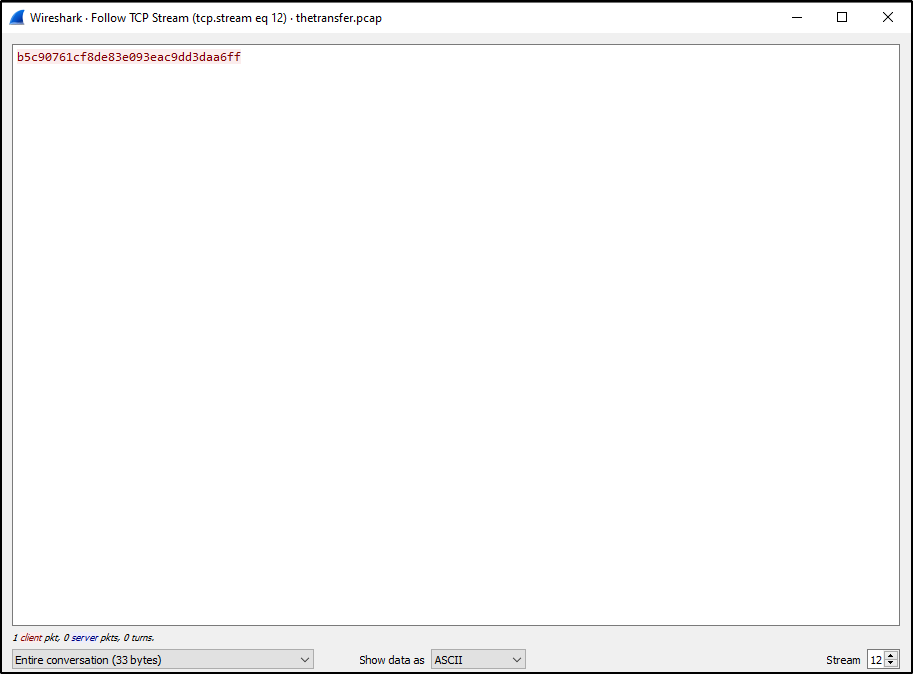
We got the flag, that is all for this challenge, let’s move onto the next!
firmware
Challenge description:
This server distributes firmware updates to legacy devices, using the TFTP protocol. Start by fetching the file tftp://IP/firmware.zip from the server, extract it and analyze it carefully.
The file includes some transfers that you can replicate to retrieve the flags from the system. There is also a flag that will be given to you if you repeat the steps performed by the attacker.
Your timer starts from the first time you connect to the service.
You can download the challenge from here: firmware.pcap.
Let’s start with Statistics -> Protocol Hierarchy:
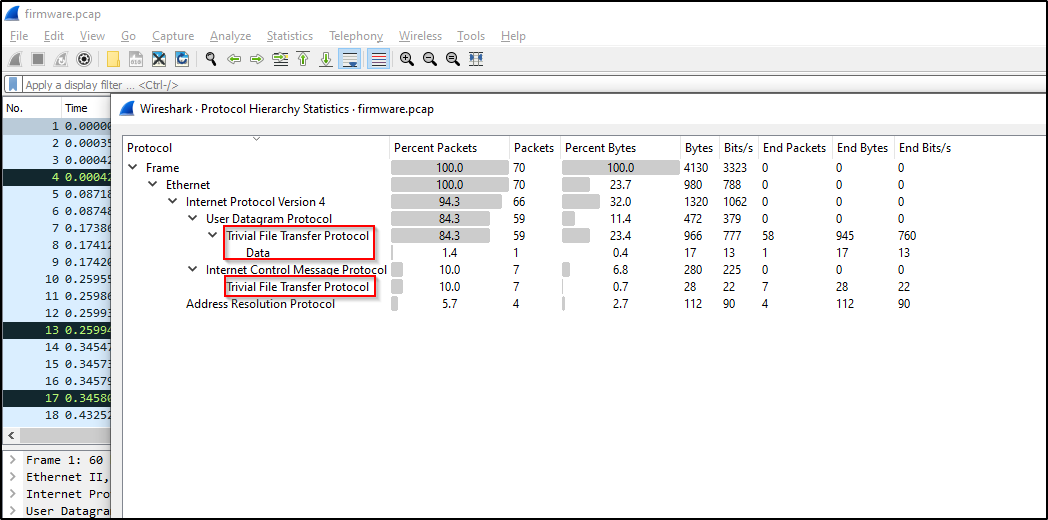
We only got TFTP that looks interesting, and if we apply tftp as display filter we see packets containing read and write requests to the tftp server, and one of the write requests got the flag with the flag format ETSCTF_*:
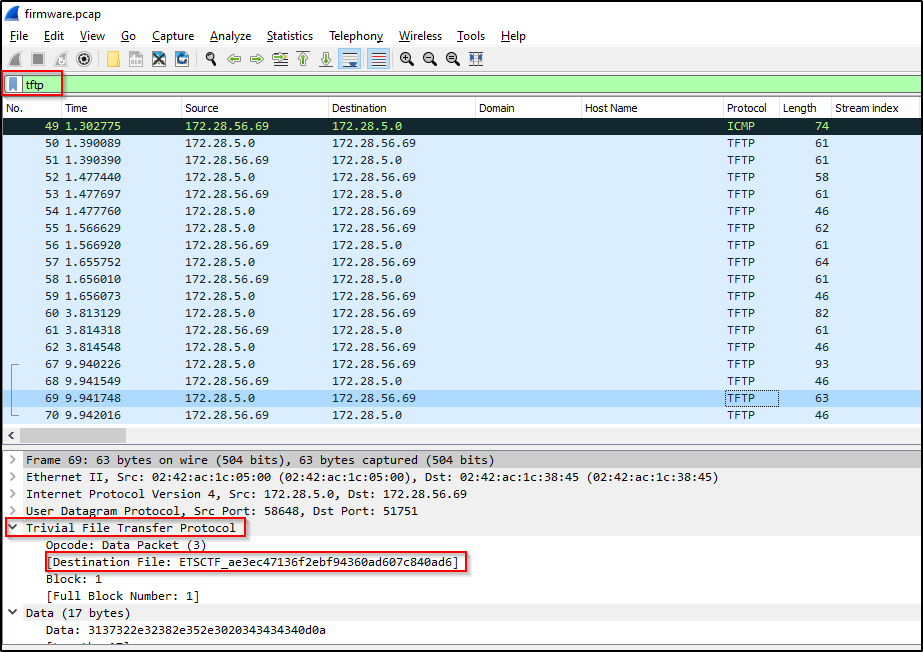
You can just copy the flag value or download the file from File -> Export Objects -> TFTP. This challenge had one more flag which was to be retrieved by interacting with the locally running tftp service.
airdrop
You can download the challenge from here: airdrop.pcap.
This capture file contains encrypted IEEE 802.11 wireless traffic:
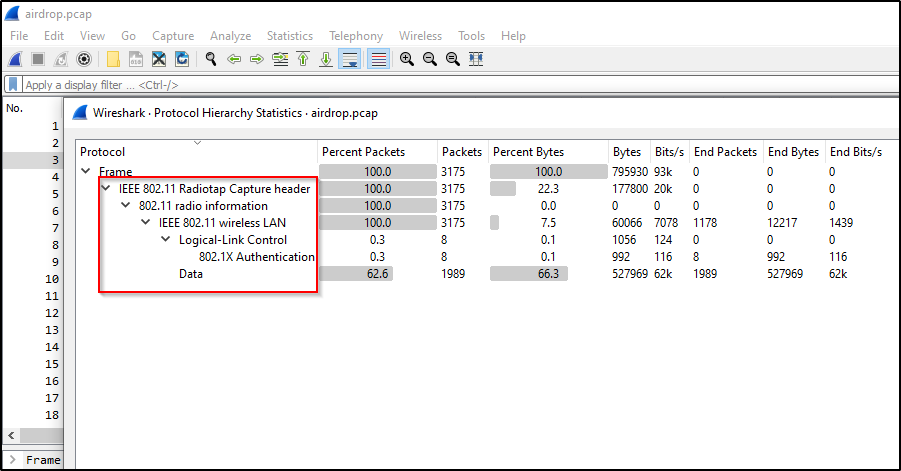
Challenge description contained these passwords:
root@kali:~/airdrop# cat wifi.pass
haishie0ail6hieM
oovohw1phieVohch
To decrypt the captured traffic, get SSID, use wlan.ssid display filter and it will reduce number of packets to 2, containing main_office_corporate and main_office_guest, we can get the SSID using aircrack-ng as well. (we don’t need this step because aircrack-ng will take care of SSID discovery)
Lets use aircrack-ng to crack the password for both Wi-Fi networks:
root@kali:~/airdrop# aircrack-ng -w wifi.pass airdrop.pcap
Reading packets, please wait...
Opening airdrop.pcap
Read 3175 packets.

   #  BSSID              ESSID                     Encryption

   1  6A:F0:FE:A2:5F:71  main_office_corporate     WPA (1 handshake, with PMKID)
   2  EC:F0:FE:A2:5F:70  main_office_guest         WPA (1 handshake, with PMKID)

Index number of target network ?
Now, we need to select a network one at a time to know which password belongs to which network.
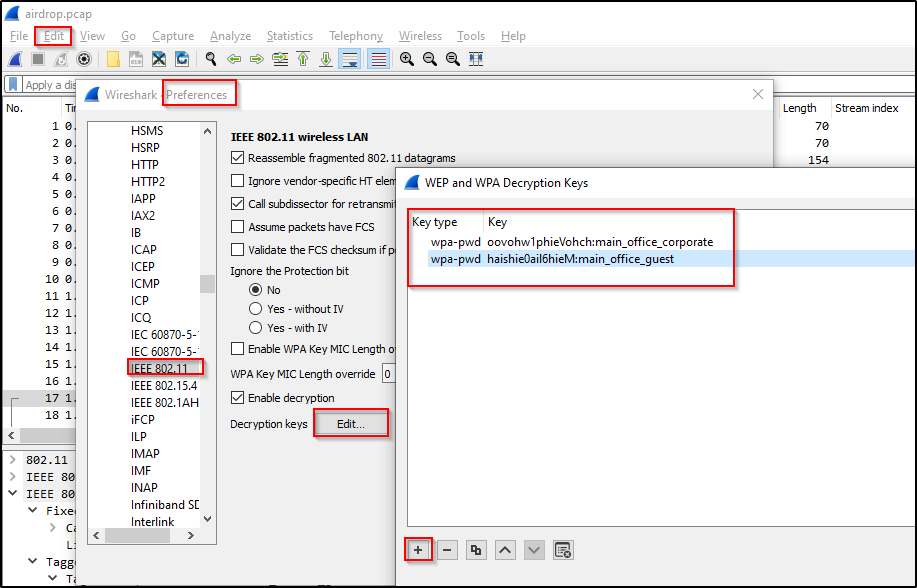
- 6A:F0:FE:A2:5F:71 main_office_corporate -> KEY FOUND! [ oovohw1phieVohch ]
- EC:F0:FE:A2:5F:70 main_office_guest -> KEY FOUND! [ haishie0ail6hieM ]
Now, go to Edit -> Preferences -> Protocols -> IEEE 802.11 -> Decryption Keys -> Edit, and add both entries as:
So, the way I found flag for this challenge is easy and CTF-ish like, I didn’t do much analysis, just used the tcp contains ETSCTF display filter and found the flag:
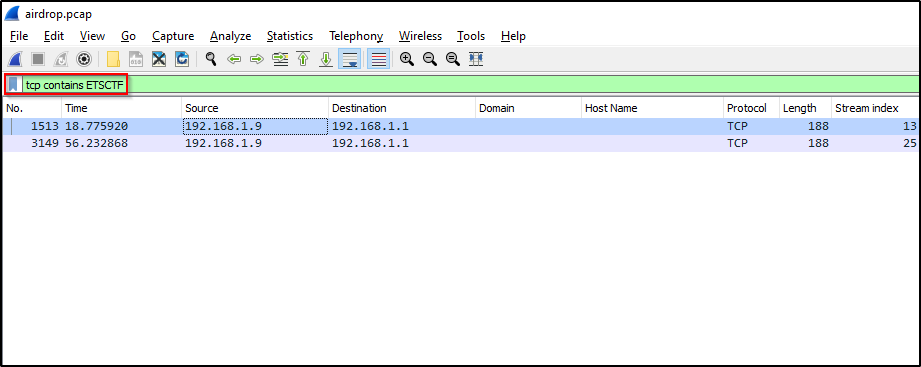
Follow TCP stream:
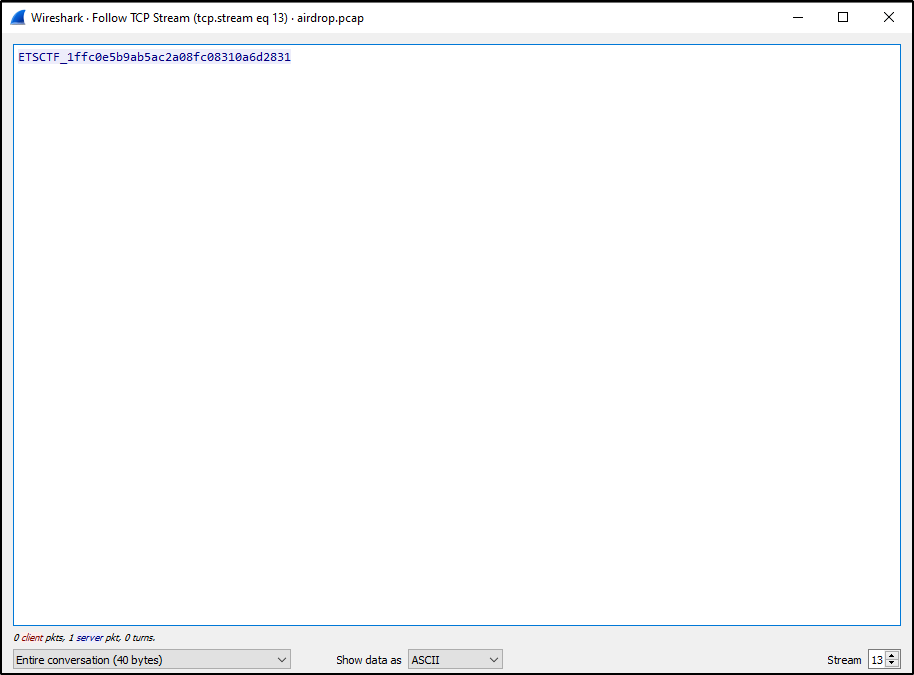
We got our flag!
Finals
thememory
Challenge description:
Analyze the provided file and see if you can find the required details.
The following details are required:
- What is the valid username used to login?
- What is the valid password used to login?
- What is the value of the cyberhackathon key that was read?
- What is the value of the admin_key key that was set?
To start the challenge download the capture file from thememory.pcap. Your timer starts from the time you attempt to grab the file.
First, let’s look into Statistics -> Protocol Hierarchy and see what kind of traffic is captured in this pcap file:
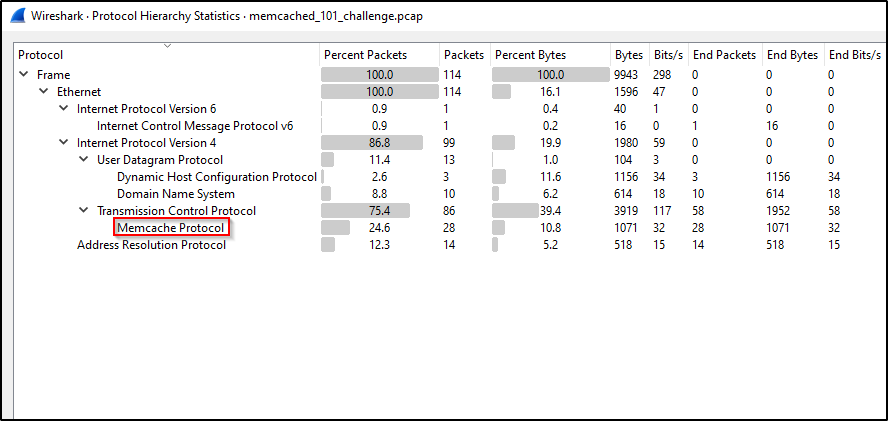
Looking at all these protocols, non of these work with username, password, or keys except one, Memcache Protocol, let’s apply this protocol as display filter:
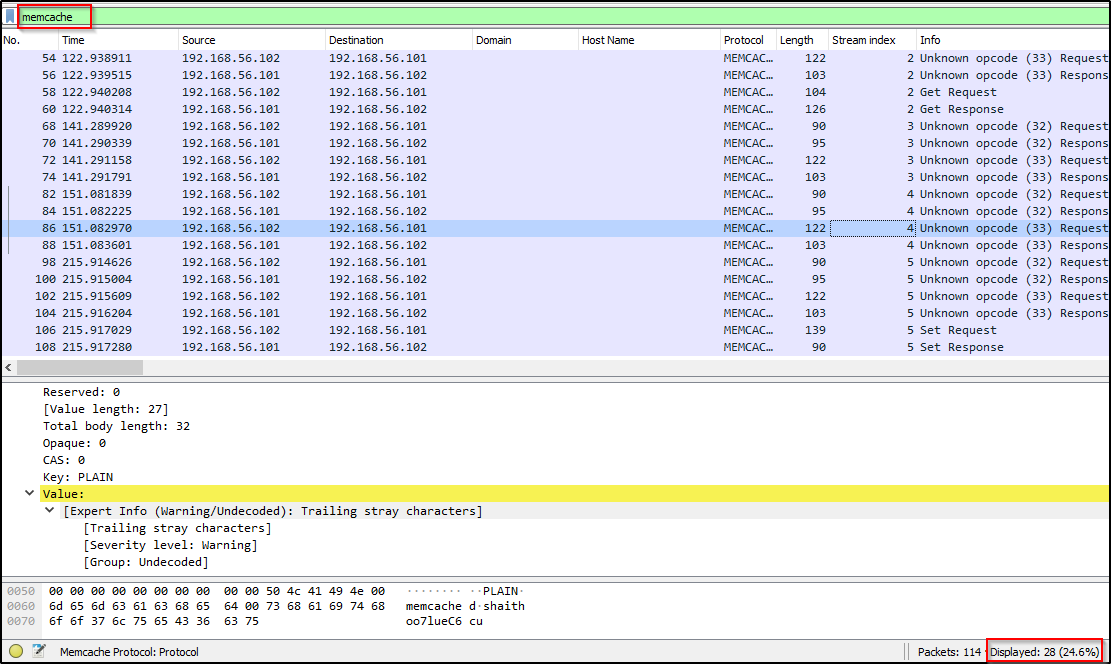
There’s not lot of packets here so we can easily look though it, let’s follow the TCP Streams:
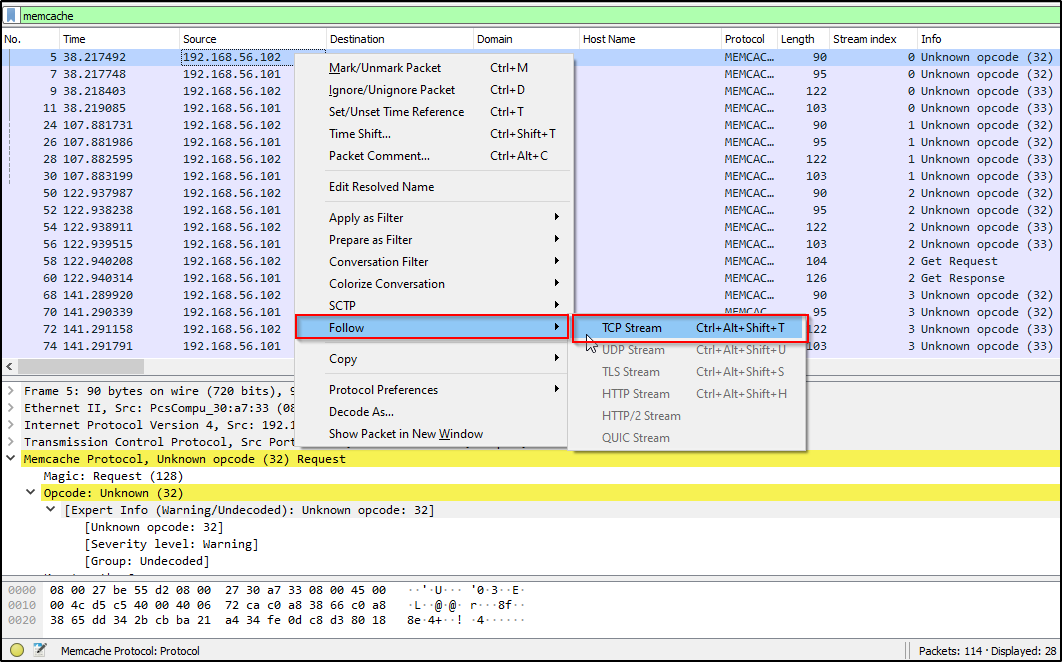
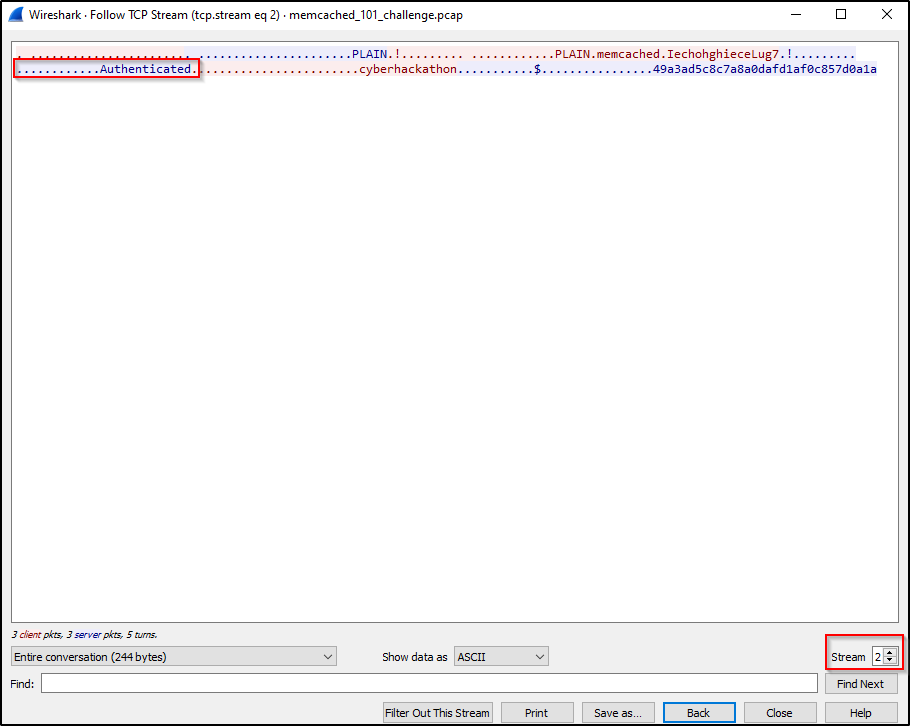
And we see that there is total 6 streams containing either “Auth Failure” or “Authenticated” message in it. We are interested in “Authenticated” one, and if we look at stream #02 and #05, we get the required details:
- username: memcache
- password: IechohghieceLug7
- cyberhackathon_key: 49a3ad5c8c7a8a0dafd1af0c857d0a1a
- admin_key: admin_key9461ff19d8db5f04452662a074b0b9ab
unvpn
Two files are given to download: vpn_capture.pcap and details.log.
Go to Statistics -> Protocol Hierarchy:
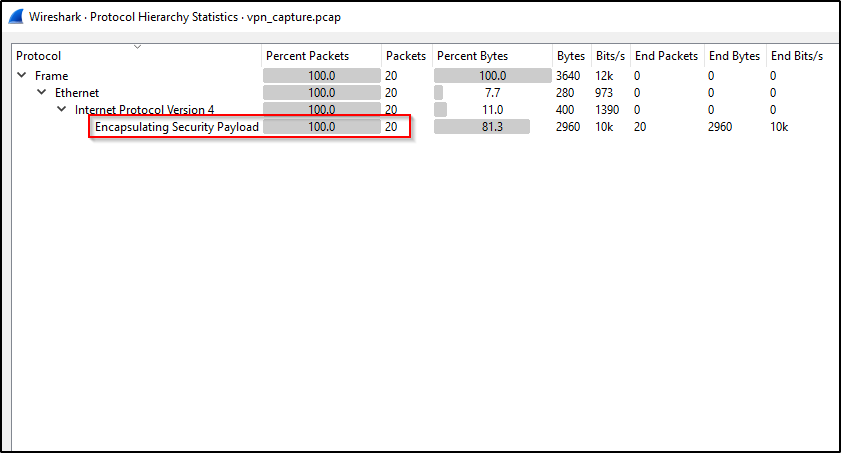
It is encrypted VPN traffic, to decrypt it we will need VPN tunnel details, and these are already given in details.log file.
- Go to Edit -> Preferences -> Protocol -> ESP
- Enable all highlighted check boxes
- Select Edit
- Create New Entries
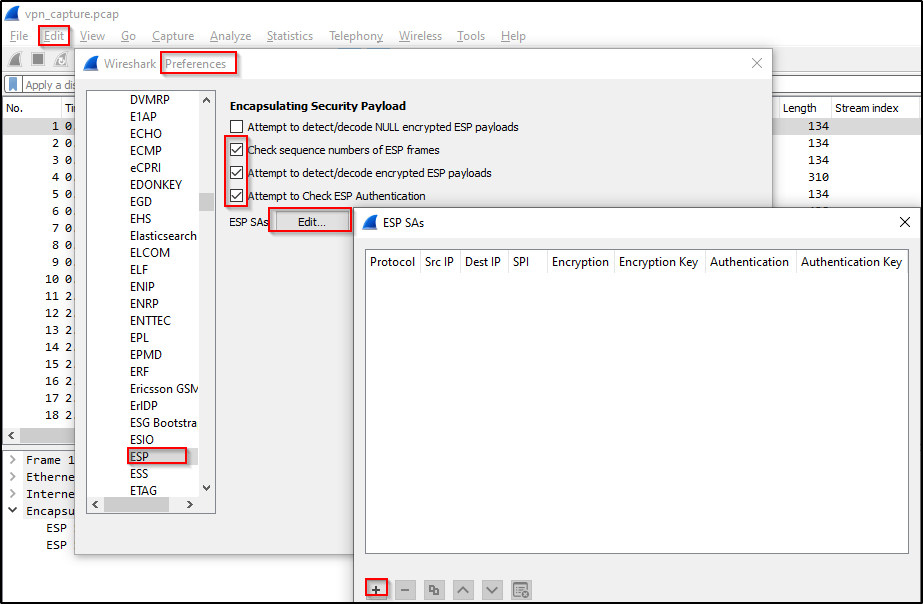
Details to enter for an ‘ESP SAs’ entry should be in this format:
Protocol: IPv4
src IP: 192.168.56.102
dst IP: 192.168.56.101
SPI: 0xc15d36d6
Encryption: cbc(aes)
Encryption Key: 0x729076acca1674eef11cb9ac7f532df140ecdf241253b5c389c854d6b20a649b
Authentication: hmac(sha1)
Authentication Key: 0xe97e11d48b4aaeafee0c670e2cad2f0956d2751a
Enter the VPN tunnel details for both ESP SAs (create two entries for both of the ESP SAs):
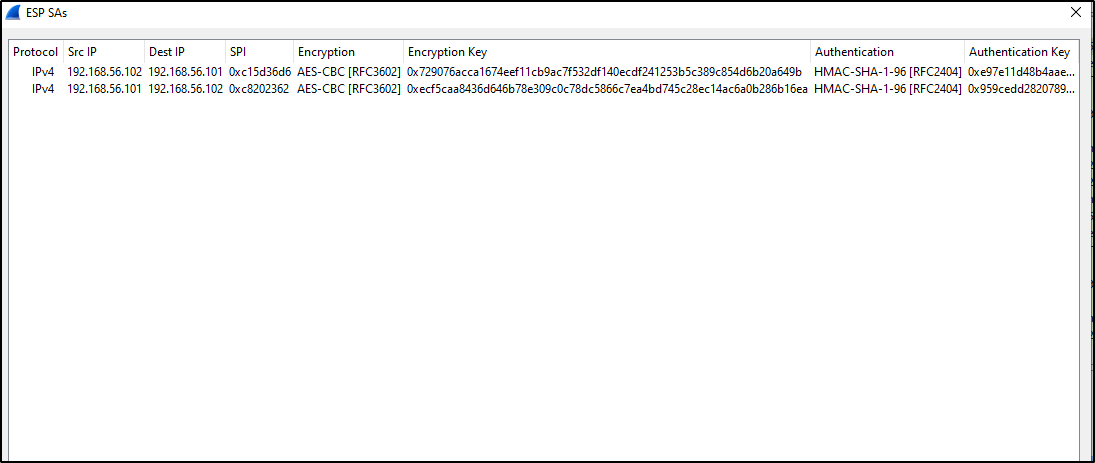
After decoding the traffic, we see that we have TCP and HTTP protocols and only 2 streams to follow, in stream #0, server responded with 403 status code and in stream #01, the server responded with 200 status code.
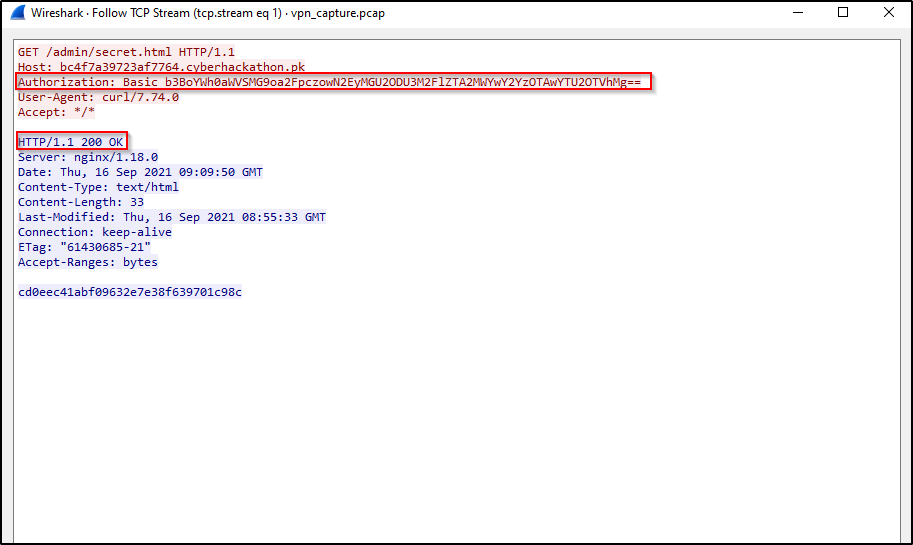
Now if we look at the HTTP request header “Authorization”, we see base64 encoded string, take that encoded string from the HTTP stream where status code is 200 (server has accepted the credentials provided in the header), decoding it will give us the required details to submit:
root@kali:~$ echo "b3BoYWh0aWVSMG9oa2FpczowN2EyMGU2ODU3M2FlZTA2MWYwY2YzOTAwYTU2OTVhMg==" | base64 -d
ophahtieR0ohkais:07a20e68573aee061f0cf3900a5695a2
That was all for this writeup, I hope you got something out of it. Happy Hacking! 🔥